SAVE: Stores your work so it is not lost! Whatever you typed or changed gets saved permanently. Always click SAVE when you are done editing something important. If you forget to save and close the page, your changes might disappear! Make saving a habit - do it often!
Edit the descriptions that appear in the Tour Guide sidebar when users hover over buttons. Changes are saved when you click "DOWNLOAD FILE" and upload to Netlify.
ASK ANYTHING
Ask any question - I'll search the web and give you a real answer!
Contact: MARKANTHONYWIPFLER AT gmail DOT com for Suggestions/ Comments /Report Bugs
This notice will close in 13seconds
3x3x3
Mark Anthony Wipfler's Cube Timer
SAVED!
ALARM! ALARM!
Click to stop the alarm!
Select Language
Settings
100%
Settings save automatically when changed
Set Alarm?
7:00 AM
Select days
No label
Next alarm: Select days to see
:
The alarm voice will speak whatever you type! Example: "Wake up for work"
Your Alarms
ALGULATER - Algorithm Translator
The Master Translator of Cube Algorithms
?
INPUT ALGORITHM
Scramble: U B' D2 F' U2 L F2 R2 U' B2 L' U2 L2 B2 D' F' U2 L F R'
?
PAUSED - Data saved on your device | You can switch cubes/activities - time preserved | Resume: P | Stop: Space
Average
15.29
Ao5
11.09
Ao12
N/A
Best
N/A
0.00
Progress Chart - Last 100 Solve Times - 3x3x3
???
?
Current Time:Mar 6, 2026 - 10:43:19 AM
?
The Universal Core:Every algorithm on any twisty puzzle derives from these patterns. Master Sune and Anti-Sune. The chunked structure (4-move sequences) enables muscle memory and lightning-fast execution. Works on all cube sizes for OLL (Orient Last Layer).
Sune
Core
U R U' RU R2 U'
Anti-Sune
Core
U' R' U R'U' R2 U
Double Sune
Master Algorithm
U R U' RU R' U' RU R2 U' R2
Anti-Double-Sune
Master Algorithm
U' R' U R'U' R U R'U' R2 U R2
The "Anti" Principle
U becomes U'(and vice versa)
R becomes R'(and vice versa)
R2 and U2 stay the same(180° rotations are their own inverse)
Keep the same sequence- finger tricks and rhythm preserved
Result:Perfect mirror that undoes the original algorithm
Session Average (All Solves):15.29
Average of Last 5 Solves (Ao5) - Removes Best & Worst:11.09
Average of Last 12 Solves (Ao12) - Removes Best & Worst:N/A
Solve History Log (All Recorded Times) - 3x3x3
Solve #
Timestamp
Time
Ao5 (Avg of 5)
Action
5
10:05:19 AM
41.03
11.09
4
6:41:50 AM
13.47
N/A
3
8:22:04 AM
2.15
N/A
2
6:42:25 AM
15.99
N/A
1
6:42:09 AM
3.80
N/A
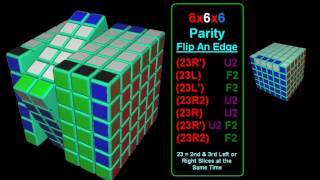
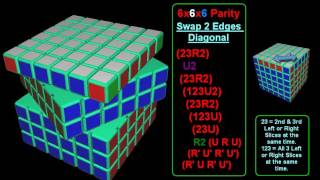
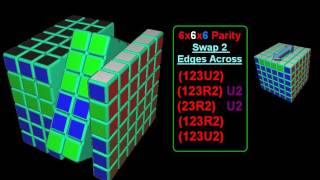
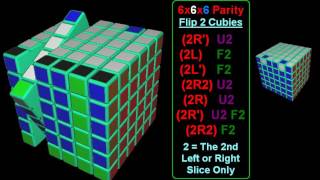
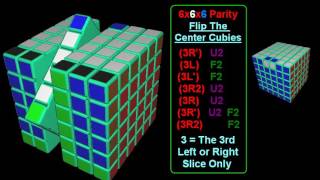
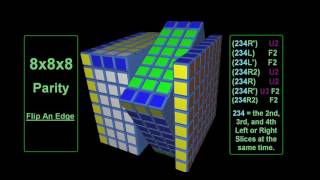
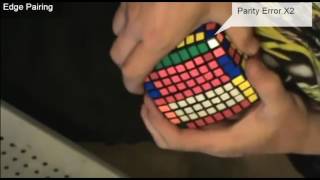
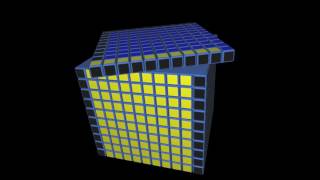
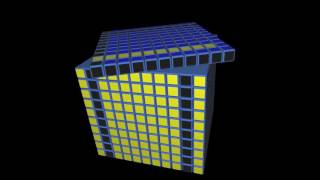
PLEASE NOTE THAT ALL OF THESE PARITY CASES LOAD IN A NEW YOUTUBE TAB
Auto-generated from YouTube URL. Paste a custom thumbnail URL to override.
Thumbnail preview will appear here
Edit Thumbnail
Thumbnail preview will appear here
Smart Perpetual Calendar
Month Due: $0.00
Month Paid: $0.00
YTD Paid: $0.00
Mon
Tue
Wed
Thu
Fri
Sat
Sun
Manage Birthdays
Add New Birthday
Spending Tracker -
?
How to add expenses:Click on any calendar day, then enter expenses with amounts (e.g., "Rent $1000 due" or "Electric $85 paid")
Total: $0.00
How the Spending Tracker Works
How to Add Expenses to Calendar:
Click on any calendar dayto add or edit notes. Type your expense with a dollar amount and include the word "due"or "paid".
Examples of what to type:
RENT $1,000 due
Phone bill $50 paid
Internet $60 due
Electric $85.50 paid
Month Due: $0.00
Shows the total of all expenses marked with "due"in the current month.
The system searches your calendar notes for the word "due" (not case-sensitive)
Any dollar amount on the same line as "due" gets added to Month Due
Example: If you type "RENT $1,000 due" on Jan 1st, January's Month Due = $1,000
This shows what bills need to be paid this month
Month Paid: $0.00
Shows the total of all expenses marked with "paid"in the current month.
The system searches your calendar notes for the word "paid" (not case-sensitive)
Any dollar amount on the same line as "paid" gets added to Month Paid
Example: Change "RENT $1,000 due" to "RENT $1,000 paid" after you pay it
Shows how much you've actually spent this month
YTD Paid: $0.00
Shows the Year-To-Date totalof all expenses marked "paid" from January 1st until now.
Every expense marked "paid" in the current year is counted
Great for tracking your total annual spending
Resets to $0.00 on January 1st each year
Example: $1,000/month paid for 6 months = $6,000 YTD Paid
Pro Tips:
Update "due" to "paid":When you pay a bill, click the day and change the word
Not case-sensitive:"DUE", "due", "Due" all work the same way
Multiple expenses per day:Put each on its own line in the note
Track everything:The more you track, the better budget insight you get
Edit Day
?
All changes below are auto saved
Expenses & Bills
Paycheck Stats
Add New Paycheck
Paycheck History
Quick Links
Add New Link
My Links
No links yet. Add some above!
Phone Numbers
Add New Phone Number
My Contacts
No contacts yet. Add some above!
Notes to Self
Add New Note (max 1,000 characters)
0/1000
My Notes
No notes yet. Add some above!
Timer & Solving Help
How to Use the Timer
Press and hold SPACEBARto start inspection time (15 seconds default). Release spacebar to begin solving. Press spacebar again to stop the timer.
Inspection Time
Inspection lets you examine the scrambled cube before starting. The timer shows a 15-second countdown. If you exceed 15 seconds, you get a +2 penalty (DNF at 17 seconds).
Pause & Resume
Press Pkey to pause the timer mid-solve. Press Pagain to resume. Great for taking breaks during long solves.
Delete Times
Click any time in your solve list to delete it. Useful for removing mis-starts or invalid solves.
Keyboard Shortcuts
SPACEBAR- Start/stop timer, begin inspection
P- Pause/resume timer
Alarm Clock Help
Setting an Alarm
Click Alarm Clockbutton. Select hour, minute, AM/PM. Choose which days (Mon-Sun). Add optional label. Click + Set Alarm.
Alarm Sounds
Alarms play cycling beep tones at maximum volume. Custom voice message speaks your alarm label using text-to-speech.
Voice Settings
Choose from your system's available voices. Adjust pitch (0.0 = deep, 2.0 = high), rate (0.5 = slow, 2.0 = fast), and volume.
Managing Alarms
All set alarms appear in the "Your Alarms"list. Click Edit to modify. Click Delete to remove. Toggle switch to enable/disable.
Stopping Alarms
When alarm triggers, the screen flashes red with "ALARM! ALARM!"text. Click the huge STOP ALARMbutton to silence it.
Important Notes
Browser must stay open for alarms to work
Check browser permissions for sound
Alarms saved to localStorage (persist after refresh)
Calendar & Expense Tracking Help
Adding Expenses
Click any day on the calendar. Enter expense amounts and click DUEor PAIDto track bill status. Changes auto-save instantly.
Expense Categories
Pre-set categories: Rent, Water, Internet, Electric, Insurance, Car Payment, Car Insurance, Phone, Gas, Groceries, Other.
DUE vs PAID Buttons
DUE- Red button, marks bill as unpaid/due
PAID- Green button, marks bill as paid
CLEAR- Orange button, removes the expense entry
Clicking a button shows checkmark and auto-saves
Standard Notes
Add any text notes to calendar days. Click Save Noteto store it. Use Clear Noteto remove.
Spending Totals
Month Due- Total unpaid bills this month
Month Paid- Total paid bills this month
YTD Paid- Year-to-date total paid (Jan 1 - now)
Managing Birthdays
Click Manage Birthdaysbutton. Enter name, year, month, and day. Birthdays appear automatically on the calendar each year.
Paycheck Tracking
Click Paycheck Statsto log paychecks. Enter date, pay rate, net pay, gross pay, hours, and taxes. View averages and history.
Auto-Save Notice
Yellow text says "All changes below are auto saved" - this means expense buttons (DUE/PAID/CLEAR) save immediately. No Save button needed!
ALGULATER - Algorithm Translator Help
What is ALGULATER?
ALGULATER(Algorithm Translator) removes confusing x y z cube rotations from algorithms, converting them into pure face moves (R L U D F B) that are easy to film for YouTube videos.
WHAT THIS DOES:
Converts M, E, S (middle slice) moves to standard notation
Converts x, y, z (cube rotations) to standard notation
Shows CLEAR DIRECTIONS for every confusing move
Simplifies the output by canceling redundant moves
AXES GUIDE:
X axis = Left center → Right center (horizontal sideways)
Y axis = Bottom center → Top center (vertical pole)
Z axis = Back center → Front center (through your face)
How to Use
Type or paste your algorithm in the INPUT box
Press ENTER(or click ENTER button) to lock the algorithm
Choose a transformation:
Remove Cube Rotations (x y z)- Converts rotations to face moves
Inverse Algorithm- Reverses the sequence
Mirror L/R, F/B, or U/D- Flips the algorithm
Simplify/Optimize- Combines consecutive moves (U U = U2)
Each transformation creates a new OUTPUT box
You can edit and transform each OUTPUT box independently!
Supported Notation
Basic moves:R L U D F B (+ prime ' and 2)
Wide moves:Rw Lw r l (lowercase = wide)
Numbered wide moves:3Rw 5Rw 4Uw (for big cubes)
Rotations:x y z (removed by translator)
Keyboard Shortcuts
ENTER- Lock algorithm and enable transformation buttons
SHIFT+ENTER- Add new line in text box
Why Use ALGULATER?
YouTube Video Production:Film smooth algorithms without rotating the cube mid-sequence
Accessibility:Makes algorithms readable for "common sense adults" who don't know x y z notation
Scale Production:Clean up messy algorithms from online sources quickly
Nested Transformations:Experiment with different versions until you find the perfect filmable sequence
Result:Filmable algorithm with no cube rotations - ready for YouTube!
Supported Puzzles
Works for all NxNxN cubes from 2x2x2 through 10x10x10. Does NOT support Pyraminx, Megaminx, Square-1, Skewb, or Clock (different notation systems).
Scrambles & Puzzles Help
Understanding Scrambles
Each scramble is a random sequence of moves that thoroughly mixes your cube. Follow the moves exactly as shown for an official random state.
Notation Guide
R- Turn right face clockwise
R'- Turn right face counter-clockwise (prime)
R2- Turn right face twice (180 degrees)
U, D, L, F, B- Up, Down, Left, Front, Back faces
Rw, Uw- Wide turn (2 layers together)
x, y, z- Cube rotations
Selecting Puzzles
Click "Select Cube"button to choose from 50+ puzzles:
2x2 through 21x21 cubes
Pyraminx, Megaminx, Skewb
Square-1, Clock
4x4 BLD, 5x5 BLD (Blindfolded)
And many more!
Generating New Scrambles
Click "New Scramble"button to generate a fresh random scramble for your selected puzzle. Each scramble is WCA-standard.
Statistics & Progress Help
Understanding Averages
Best Time- Your single fastest solve ever
Ao5- Average of 5 (removes best and worst)
Ao12- Average of 12 (removes best and worst)
Ao100- Average of 100 (removes best 5 and worst 5)
Why Remove Best/Worst?
This is the WCA standard. Removing outliers gives a more accurate picture of your true average speed, not just lucky or unlucky solves.
Progress Chart
The chart shows your last 100 solve times visually. Watch your times trend downward as you improve. Spikes indicate bad solves or mistakes.
Chart Features
Blue line shows your times
Lower is better (faster times)
Hover over points to see exact times
Updates automatically after each solve
Tracking Improvement
Focus on your Ao100 - it's the most reliable measure of your skill level. Single best times are exciting but inconsistent!
Sune Algorithms Help
What is Sune?
Sune is one of the most fundamental algorithms in speedcubing. It's used for orienting the last layer (OLL) and forms the foundation for many advanced algorithms.
Basic Sune
R U R' U R U2 R'(7 moves, order-2)
Orients 3 yellow edges on top layer while preserving corner positions.
Anti-Sune
R U2 R' U' R U' R'(7 moves, order-2)
Mirror of Sune. All moves are inverted (U becomes U', R becomes R') while maintaining the sequence structure.
Double Sune (Optimized)
R U R' U R U' R' U R U2 R'(11 moves, order-3)
Combines two Sune patterns with seam cancellation. Middle moves (R' + R) cancel out for efficiency.
The Anti Principle
To create the "Anti" version of any algorithm, flip all moves:
U becomes U'
U' becomes U
R becomes R'
R' becomes R
Seam Cancellation
When combining algorithms, opposite moves can cancel (R' + R = nothing) and similar moves can merge (U2 + U = U').
Copying Algorithms
Click any algorithm to copy it to your clipboard instantly. Paste it into your notes or practice apps.
Settings & Customization Help
Display Mode
The site uses the signature neon animated dark mode. The psychedelic color cycling is always enabled for the signature aesthetic.
Inspection Time
Adjust from 0-30 seconds. Standard WCA competition uses 15 seconds. Set to 0 to disable inspection entirely.
Beep Volume
Control inspection countdown beeps. Slide from 0 (silent) to 100 (loud). Beeps play at 10s, 5s, and when inspection ends.
Color Cycling
The neon colors cycle automatically through the rainbow spectrum. This is always enabled for the signature aesthetic and cannot be disabled.
Language Selection
Click the long Languagebutton to change interface language. 12 languages available: English, Español, Português, Français, Deutsch, 日本語, 中文, Русский, العربية, हिन्दी, 한국어, Italiano
START!
YOUR CUSTOM ACTIVITIES
Create unlimited personal activities for timing chores, workouts, study sessions, etc.
Stopwatch
00:00:00.000
Ready
Lap Times
No laps recorded yet
BEST LAP
--:--
WORST LAP
--:--
AVERAGE LAP
--:--
TOTAL LAPS
0
Countdown Timer
00:05:00
Quick Countdown Presets
Where to Buy a 3x3x3
Click any store to open in a new tab - searches pre-filled for your puzzle!
SPOTIFY DNA1,047 tracks analyzed
AI
Mark Anthony AI
Your Site Assistant
Welcome! I am Mark Anthony AI. Ask me anything about this site!
Try asking: "How do I add a birthday?" or "How does the timer work?"